Export, replace, mirror and revert
Not every change needs an editor. Sometimes you just want a file out of the archives to look at, or
you made a new version somewhere else and want it in the game. The buttons under a file's details on
the Files tab do that. This page goes through them on the Dart Rifle's shop icon,
ui\textures\guns\gun_icon_sniperdart.xbt, with VSS Vintorez enabled, which replaces that icon.
A file replaced this way is a whole-file override, the same kind VSS Vintorez ships for this icon, which was played.
The buttons
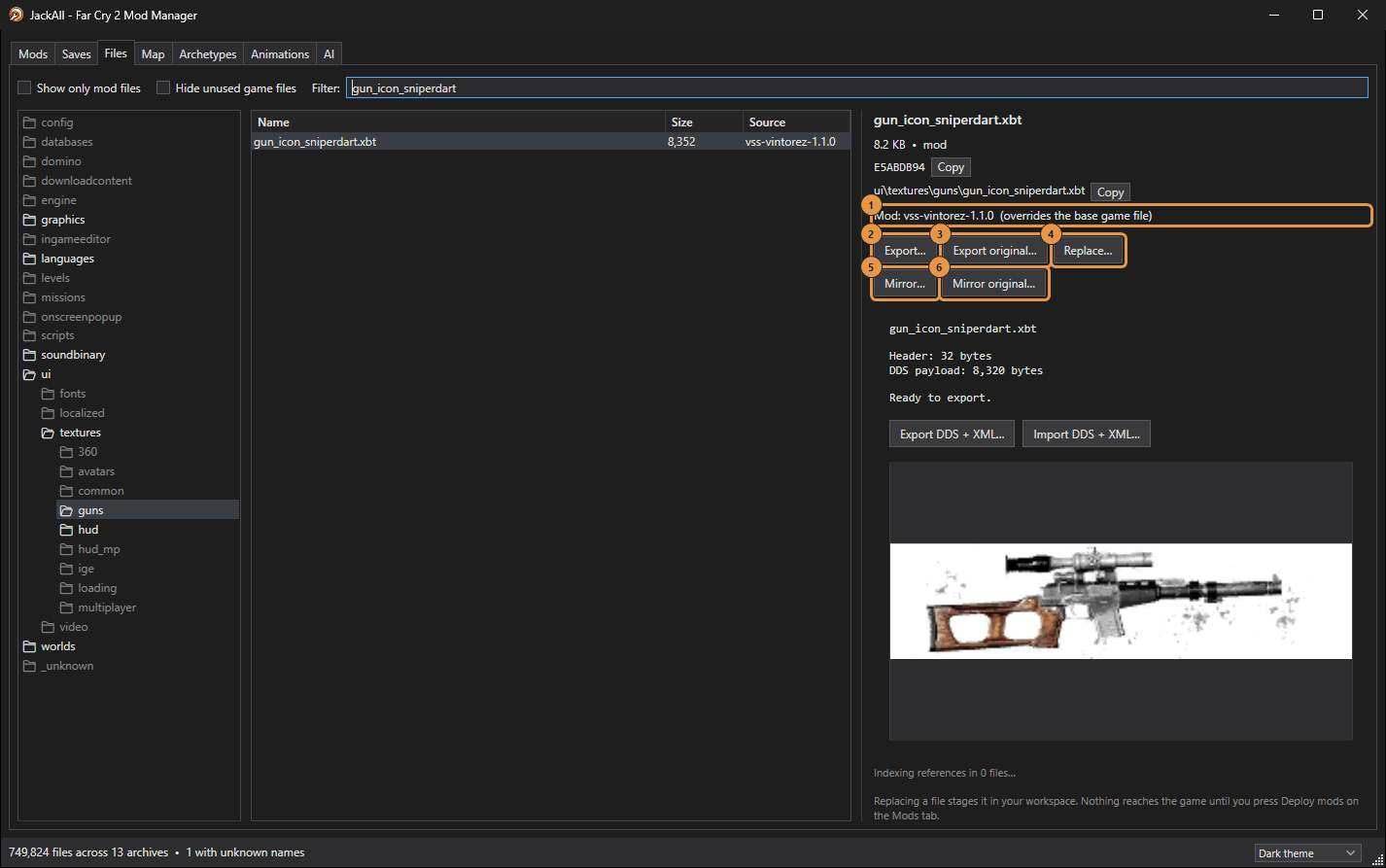
Select the file. The details say where the version you're looking at comes from (1): here the mod vss-vintorez-1.1.0, which overrides the base game's file.
| Button | What it does |
|---|---|
| Export… (2) | Saves the file as JackAll sees it now, mods included, to a place you pick. |
| Export original… (3) | Saves the base game's version, ignoring every mod. Only there when a mod or your workspace changes the file. |
| Replace… (4) | Takes a file from your disk and puts it into your workspace at this path. Your version wins over the game and over every mod. |
| Mirror… (5) | Puts the version you see now into your workspace, unchanged. |
| Mirror original… (6) | Puts the base game's version into your workspace. |
Everything that writes goes into your workspace. Nothing reaches the game until you click Deploy mods on the Mods tab.
Many file types also have their own buttons in the preview below, such as Export DDS + XML… for a texture. Those convert the file into something an ordinary program can open; the buttons above copy it as it is.
Undo one file of a mod
Mirroring looks pointless until you need it. Say you like VSS Vintorez but want the original Dart Rifle in the shop. Disabling the mod would take all of it away. Instead, click Mirror original…: the base game's icon goes into your workspace, and since the workspace always wins, that one file is back to the original while the rest of the mod stays.
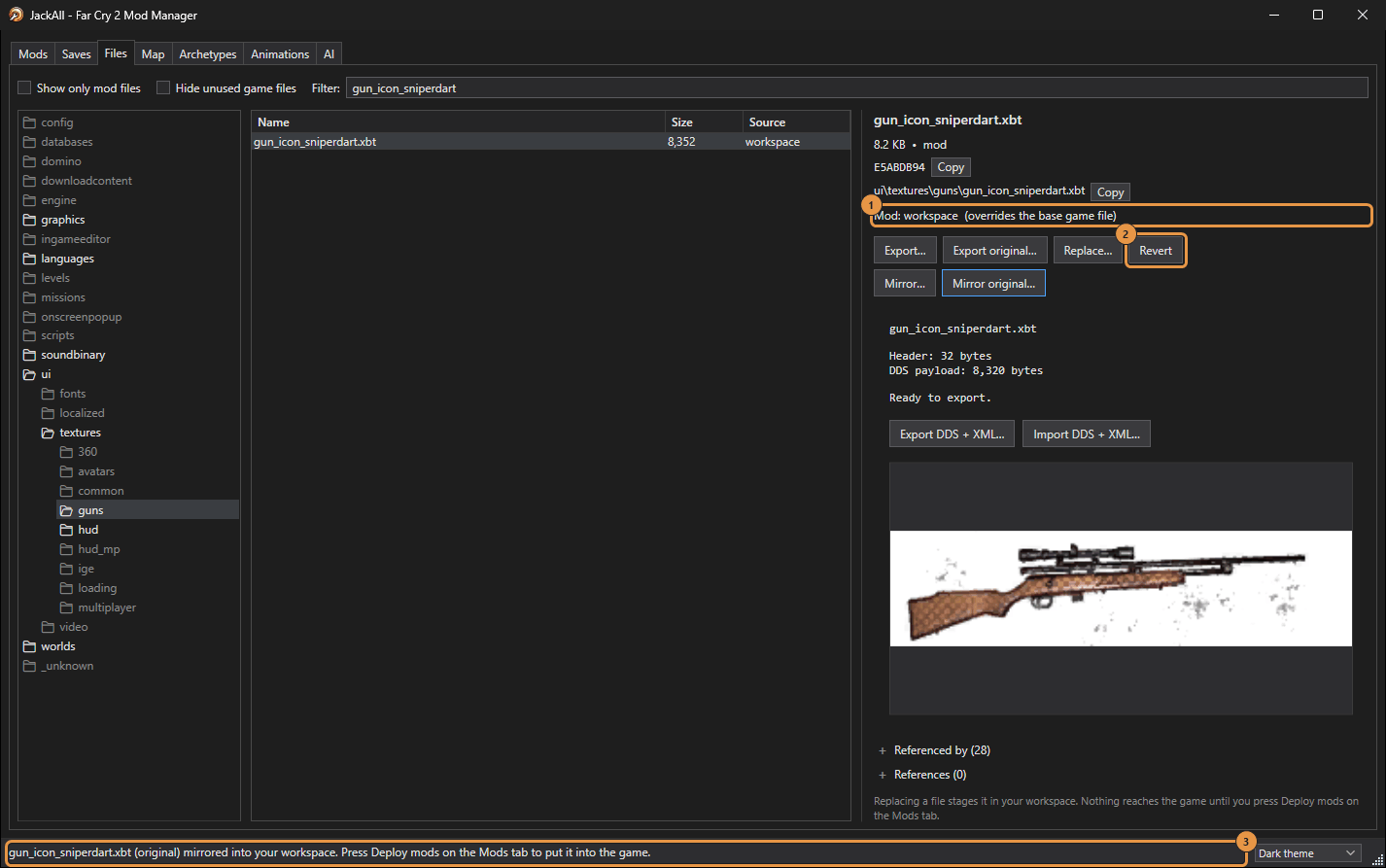
The details now say the file comes from the workspace (1), the status line confirms it (3), and a Revert button appears (2).
Revert
Revert removes your workspace's copy of a file. What you see after that is whatever the next layer down has: here VSS Vintorez's icon again, or the base game's file if no mod touches it.
Revert only undoes your own work. On a file that comes from a mod it refuses and tells you to switch that mod off on the Mods tab instead. JackAll never edits someone else's mod.
A whole folder
Right-click a folder in the tree and pick Export folder… (1). JackAll asks where to, tells you how many files and megabytes that is, and recreates the folder structure there. With Show only mod files ticked it exports only what mods change. The filter box doesn't apply here. A big folder can take a while; the status bar has a Cancel button while it runs.

Several files
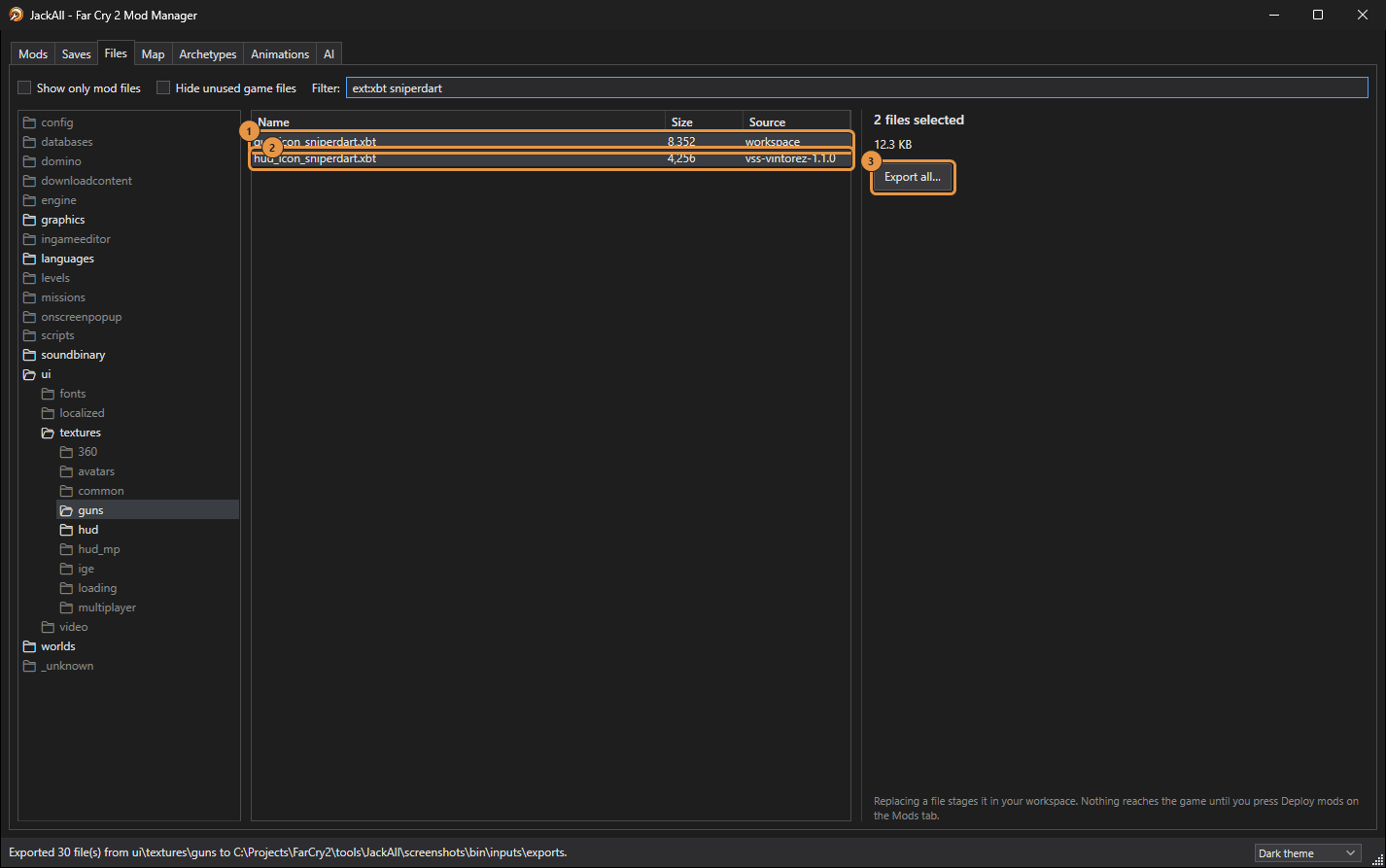
Select several files with Ctrl+click or Shift+click (1, 2). The details then offer Export all… (3), which saves them into one folder.
A file the game never reads
If you replace a file the game never opens, the ones shown in italics, JackAll asks first. You can go ahead, and the file deploys like any other, but nothing will change in game. See Finding any file.