Edit the HUD and menus
Every screen in Far Cry 2, from the main menu and the pause menu to the HUD, is a Magma package:
an .mgb file under ui\localized\. JackAll's MGB editor opens one as a tree of everything in it,
with every value editable.
The example recolours a HUD text: the hint that says "When your health is below one bar, you are critically wounded…", from grey to orange.
Saving here writes the same per-area pieces of hud.mgb that Flashlight ships for its HUD icon,
which was played. This colour change hasn't been played.
1. Open the package
On the Files tab, search ext:mgb hud and select ui\localized\pc\eng\ui\hud.mgb. Click Open in
MGB Editor…. The package opens in its own tab.
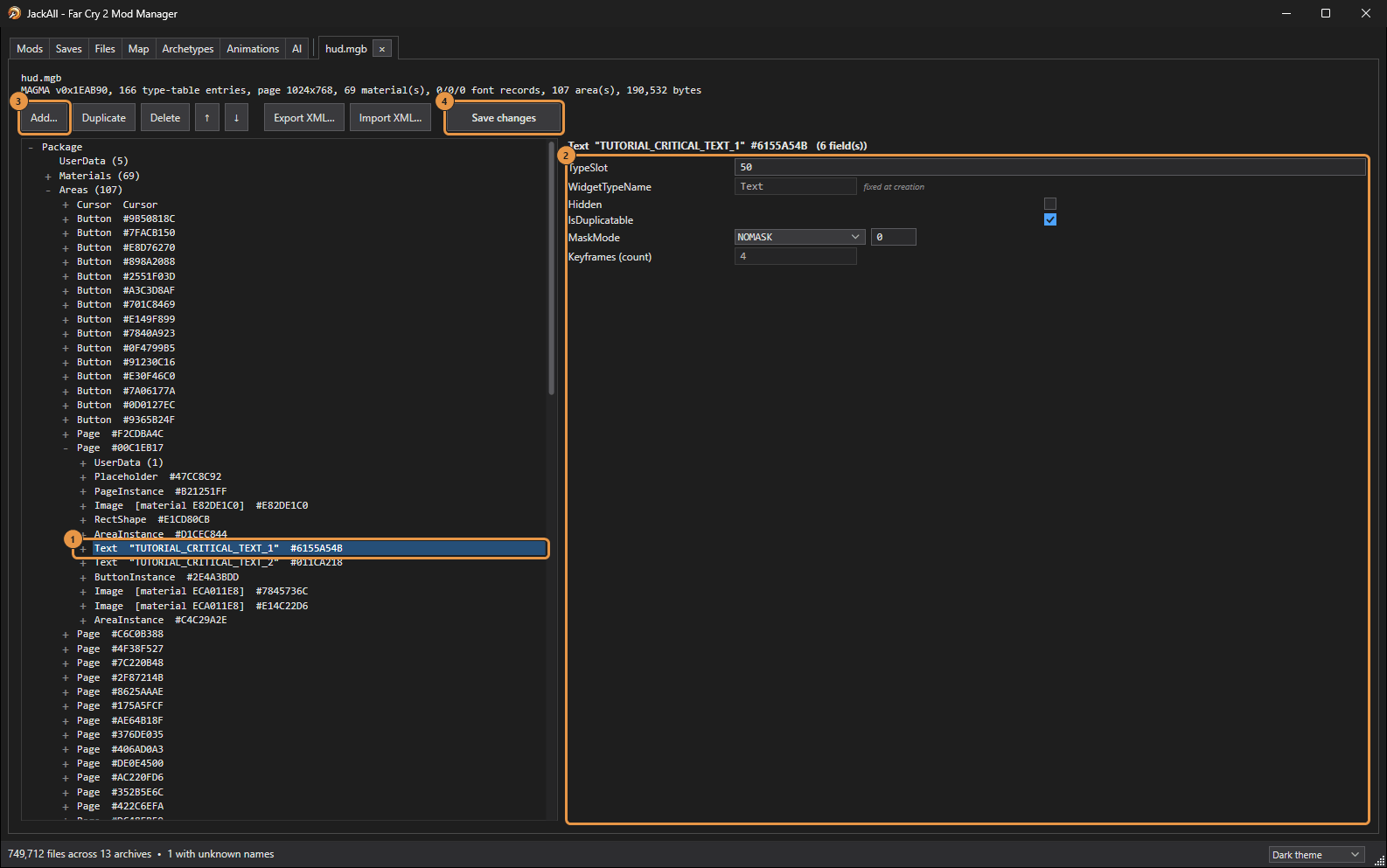
2. Find your element
The tree is the package: its Materials (the textures it draws with), and its Areas. An area is one self-contained piece of UI, a button, a page or a panel, with its own elements inside: images, texts, shapes, and instances of other areas.
Most names in a package are stored only as hashes, so you see #00C1EB17 rather than a name. Find
things by what they show instead:
- A Text element shows the id of its string, here
"TUTORIAL_CRITICAL_TEXT_1"(1). Look the id up in the string table (see Rename a weapon) to learn what the player reads. - An Image shows its material, and the Materials list tells you which texture that is.
Select something and its fields are on the right (2). Add… (3) and Save changes (4) are above the tree.
3. Change it
An element doesn't hold its own position or colour; its keyframes do. A static element has one, an animated one several, and the game moves between them. Open the text's Keyframes, a keyframe, and its TextState. StateColor (1) is the colour as ARGB hex, alpha first; the swatch next to it (2) opens a colour picker.

This text fades in, so its first keyframe is fully transparent (0x00…) and the later ones opaque
(0xFF…). Change the colour in every keyframe and keep each one's alpha, or the fade breaks. The
same goes for position: Left, Right, Top and Bottom in each keyframe.
4. Add, copy, remove
Select an area and click Add…. The list holds only what the game accepts in that spot: an area takes these fourteen kinds of element, the package's area list takes the five kinds of area. Anything else would make the game crash on load, so JackAll doesn't offer it.

Duplicate, Delete, and ↑ ↓ for the drawing order work on the selected element. A material's texture has a … button that opens the game's file picker.
5. Save
Click Save changes (1). The status next to it (2) confirms it.

JackAll doesn't stage the whole package. It compares it with the original and keeps only the areas you changed, one file each, so another mod that changes a different part of the HUD merges with yours.

Then Deploy mods.
Every copy of the package
The game ships each UI package once per language and once per screen shape: ui\localized\pc\<lang>\
and ui\localized\pcwidescreen\<lang>\. The usual install has five languages, eng, fre, ger,
ita and spa, so ten copies. A player sees the copy for their language and screen, so a HUD change
for everyone means the same edit in all of them. Flashlight's HUD icon ships that way.
For the same change across ten packages, Export XML… and Import XML… are faster than the tree: edit the XML in a text editor, import it into each copy, and save. Everything about the format and what the game accepts is in Magma UI.