Move, add and delete objects
Everything placed in a world (cars, crates, guards, buildings, trigger zones) can be moved, rotated, copied, deleted, or added from the archetype library on the Map tab. This page moves a jeep, adds a stack of beer barrels, deletes another jeep, and saves. It starts where Explore a world ends: world1 loaded, and the Jeep Liberty selected.
Map edits are saved the way the world files are understood, and the build accepts them. None has been loaded in game yet, so treat a map edit as an experiment and test it before you share it.
Move and rotate
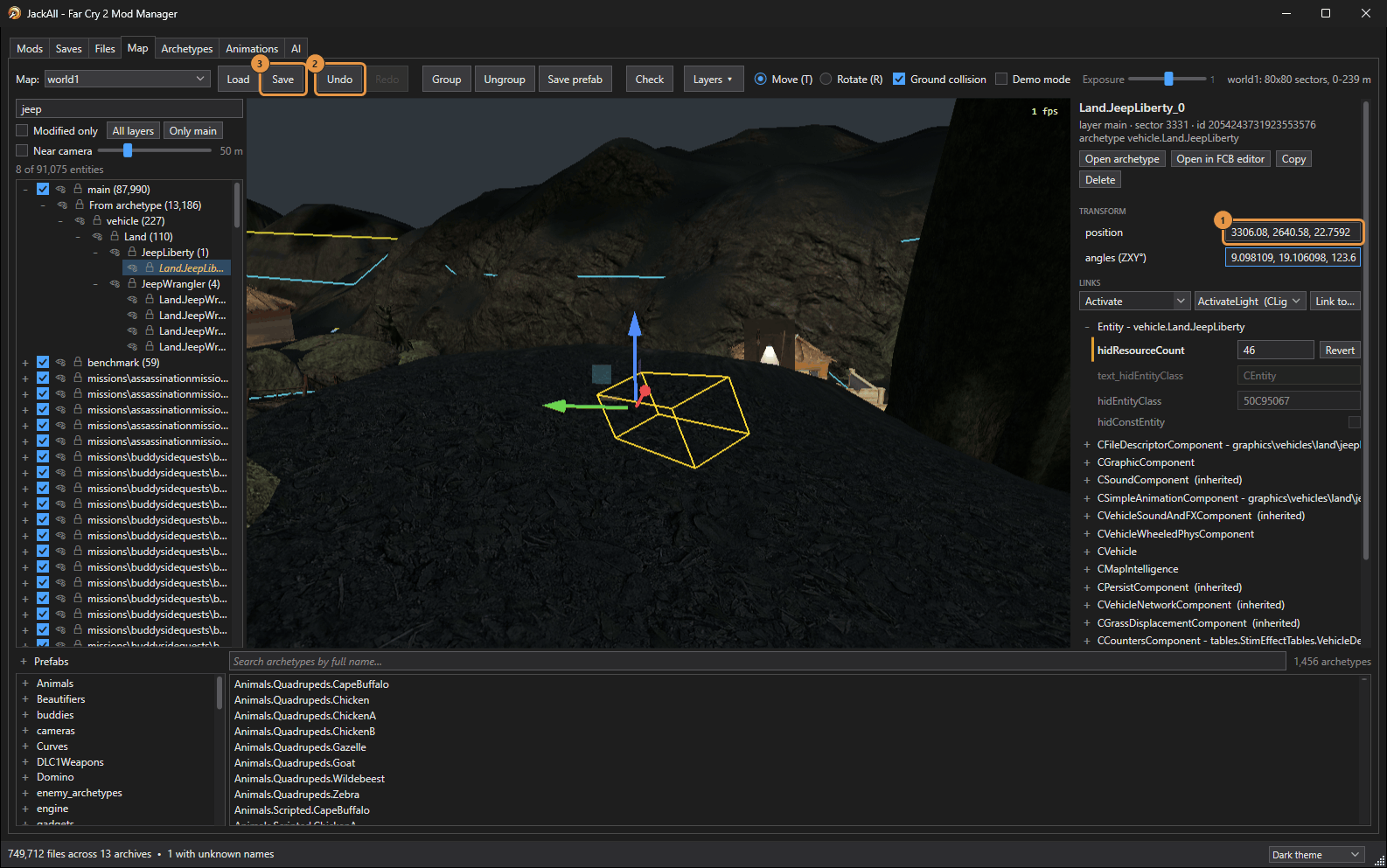
A selected object has a gizmo: arrows in the 3D view. Drag an arrow to move the object along it. Move (T) and Rotate (R) in the toolbar switch between moving and turning, and so do the T and R keys.
For an exact change, type it instead: position (1) in the inspector is x, y, z in metres, and angles below it the rotation in degrees. Here the jeep moved 5 m east. Undo (2) and Redo (Ctrl+Z, Ctrl+Y) step through every edit, even past a save, and Save (3) becomes available.
Ctrl+C copies the selection and Ctrl+V pastes a copy on the ground under the mouse. A copy survives loading the other world, so you can carry an object from one map to another. Del deletes the selection, as does Delete in the inspector.
Check before you save
Some mistakes save without complaint and fail silently in game. Check looks for them: an archetype the world doesn't know, a character standing where there's no navmesh, a link or a prefab member pointing at something you deleted, and an object moved out of the sector it's filed in. Here the jeep was dragged 300 m away, and Check says it now stands in a different sector than the one that loads it.

Click a finding to select the object it's about. Undo fixed this one.
Add an object
Two ways:
- Drag an archetype from the library at the bottom onto the ground in the 3D view.
- Right-click a layer in the hierarchy and choose New ▸ Archetype… (1).

The second opens a picker. Search (1), pick the archetype (2) and click OK (3).

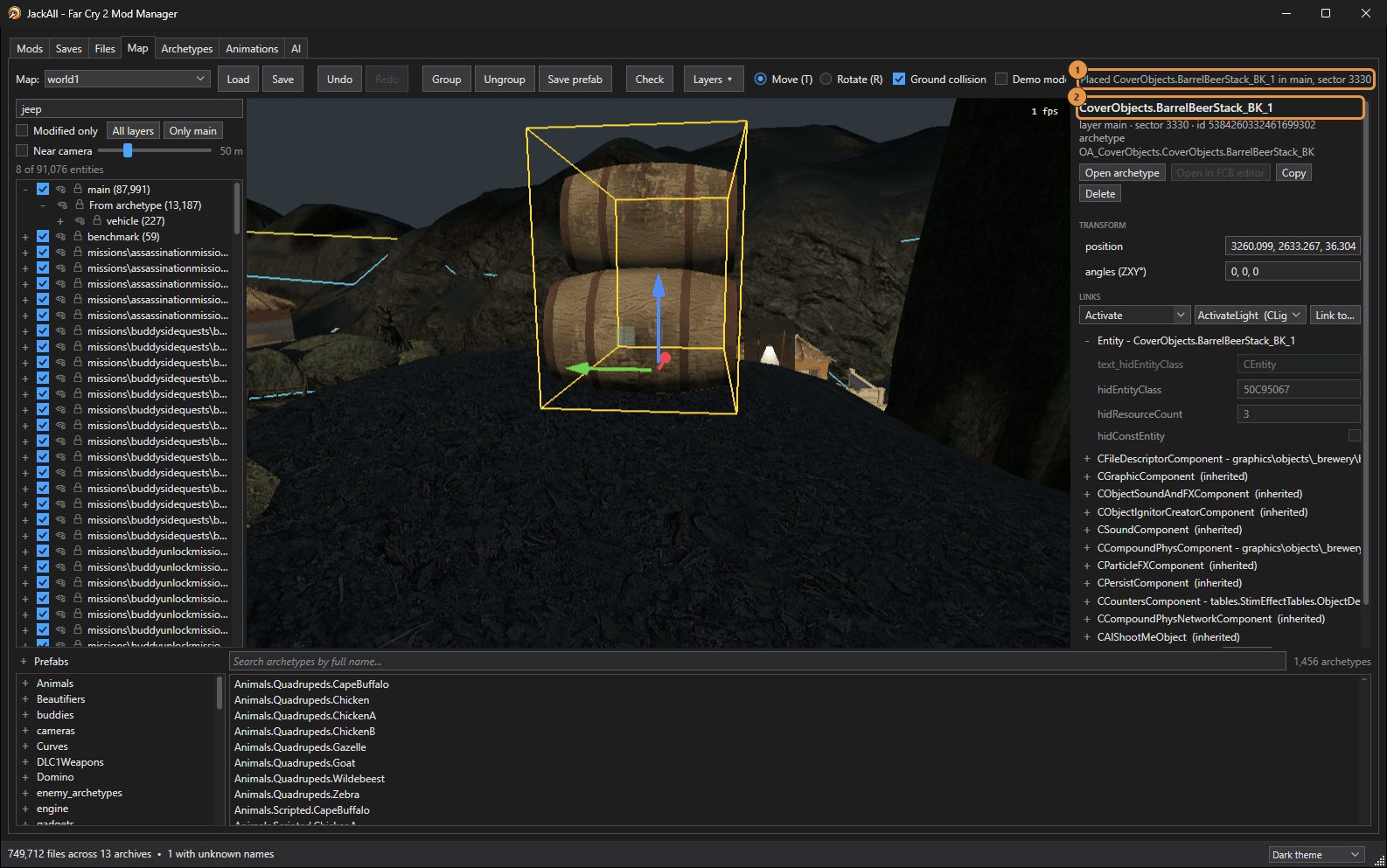
The object appears near where the camera is looking, in the layer you right-clicked. The status line says where it went (1), and the inspector shows the new object (2), ready to move into place.
New ▸ Standalone adds an object of a bare engine class, without an archetype, and New ▸ Prefab is on the next page, Links, triggers, lights and prefabs.
Mission layers
Every object belongs to a mission layer: main is always there, the others appear only during a
mission. To move an object to another layer, right-click it in the hierarchy and choose Move to
layer ▸.
Save
Save checks the world again, then writes your edits into the workspace and lists what it wrote:

- each moved or added object as its own small file inside its sector's file;
- each deleted one as a line in the sector's
_layout.xml; - for an object pasted from the other world, the archetype and the dependency entries it needs.
Because every object is its own piece, two mods that edit different objects in the same sector merge. Then go to the Mods tab and Deploy mods.
Terrain, roads, rivers and vegetation are view only. For a world of your own, see Make a new world.