Explore a world
The Map tab loads a whole Far Cry 2 world and lets you fly through it: the terrain with its textures, water, roads and vegetation, every object placed in it, and the markers the game uses but never shows, such as trigger zones, AI spots and the navmesh the AI walks on. This page is about looking; changing the world is the next page, Move, add and delete objects.
Looking around changes nothing.
Load a world
Pick a world (1), world1 is the first campaign map, and click Load (2). Loading takes a while:
it reads the terrain, every sector's objects and the vegetation. The list also has the second
campaign map, the multiplayer maps and tmpla.
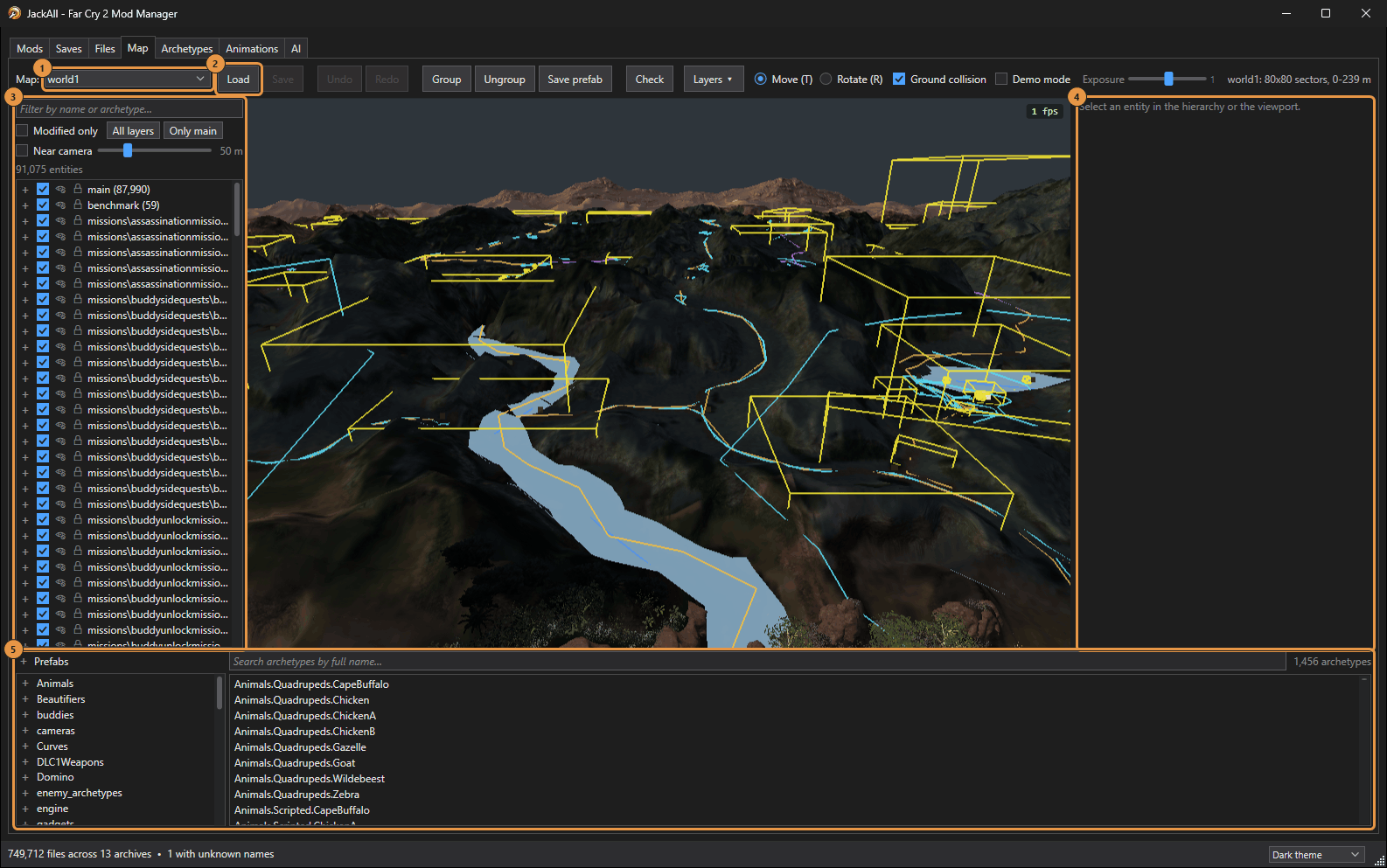
The window has four parts around the 3D view: the hierarchy (3) of everything placed in the world, grouped by mission layer; the inspector (4) for whatever you select; and the library (5) of archetypes and prefabs you can place.
Fly around
Click into the 3D view, then:
| Do | To |
|---|---|
| Hold the right mouse button and move | look around |
| W, A, S, D | fly forward, left, back, right |
| Q, E | fly down, up |
| Shift | fly ten times faster |
| Mouse wheel | change the flying speed |
| Click | select an object; Ctrl+click adds to the selection |
Ground collision in the toolbar stops the camera at the terrain instead of letting it fly through.
Choose what's drawn
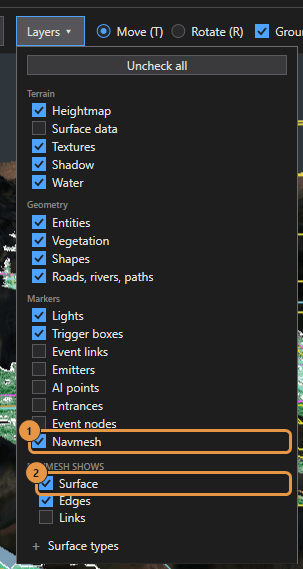
Layers ▾ lists everything the view can draw, in three groups: the terrain, the geometry (objects, vegetation, roads and rivers) and the markers. Untick a layer to hide it, or click Uncheck all and tick only what you need. The Navmesh (1) is off by default; when it's on, Navmesh shows (2) chooses its surface, its edges and the links between its triangles. Surface types at the bottom is the colour key for the terrain's surface data.
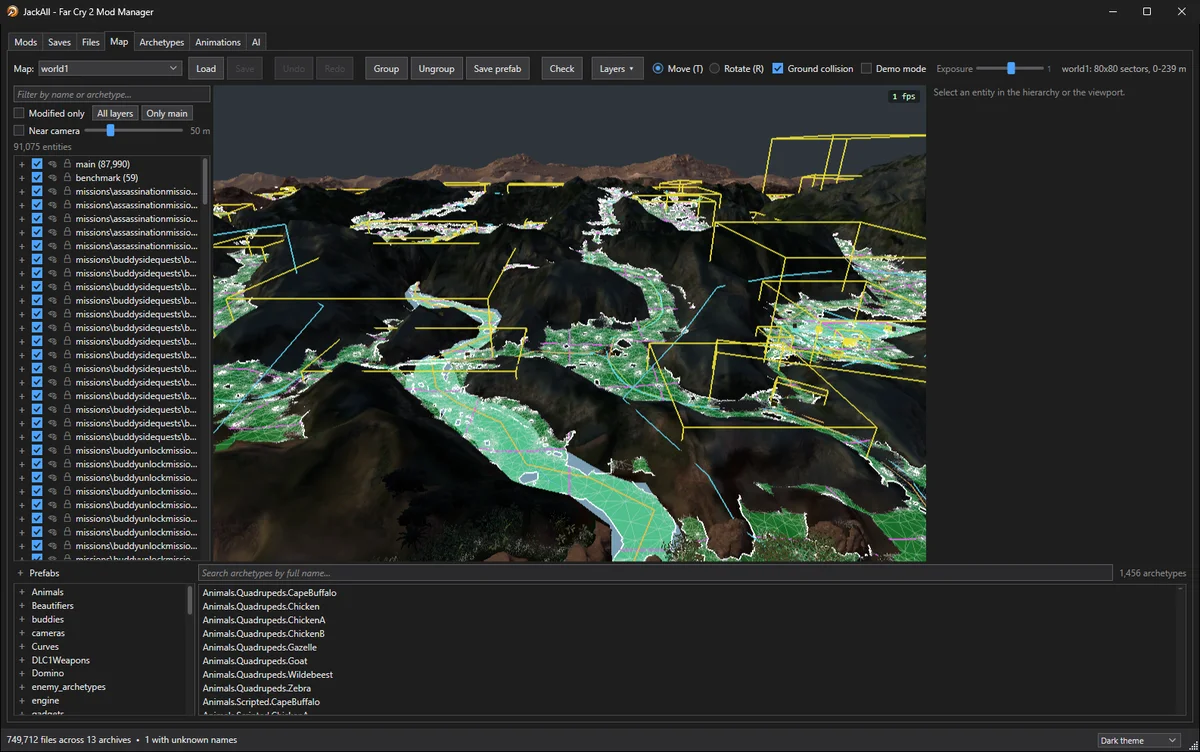
The navmesh is where the AI can walk. Green triangles are flat ground and red ones steep; the white outline is the edge of the walkable area.
Demo mode turns on everything expensive: the sun's shadows, ambient occlusion, the sky, haze, real water and a continuous redraw. Leave it off while you work, the view is faster without it. Exposure brightens or darkens the scene.
The line at the top right of the view is what drawing it costs: the frame rate and the slowest frame, CPU and GPU time per frame, draw calls, triangles, time spent rebuilding what is drawn, and video memory in use. Grass is drawn up to 100 m from the camera.
Find an object
Type into the hierarchy's filter to keep only the objects whose name or archetype matches. Here
jeep leaves 8 of the world's 91,075 objects. Open the groups and click one (1). The camera flies
to it, and the inspector shows it (2): its layer, its sector, its id and its archetype.
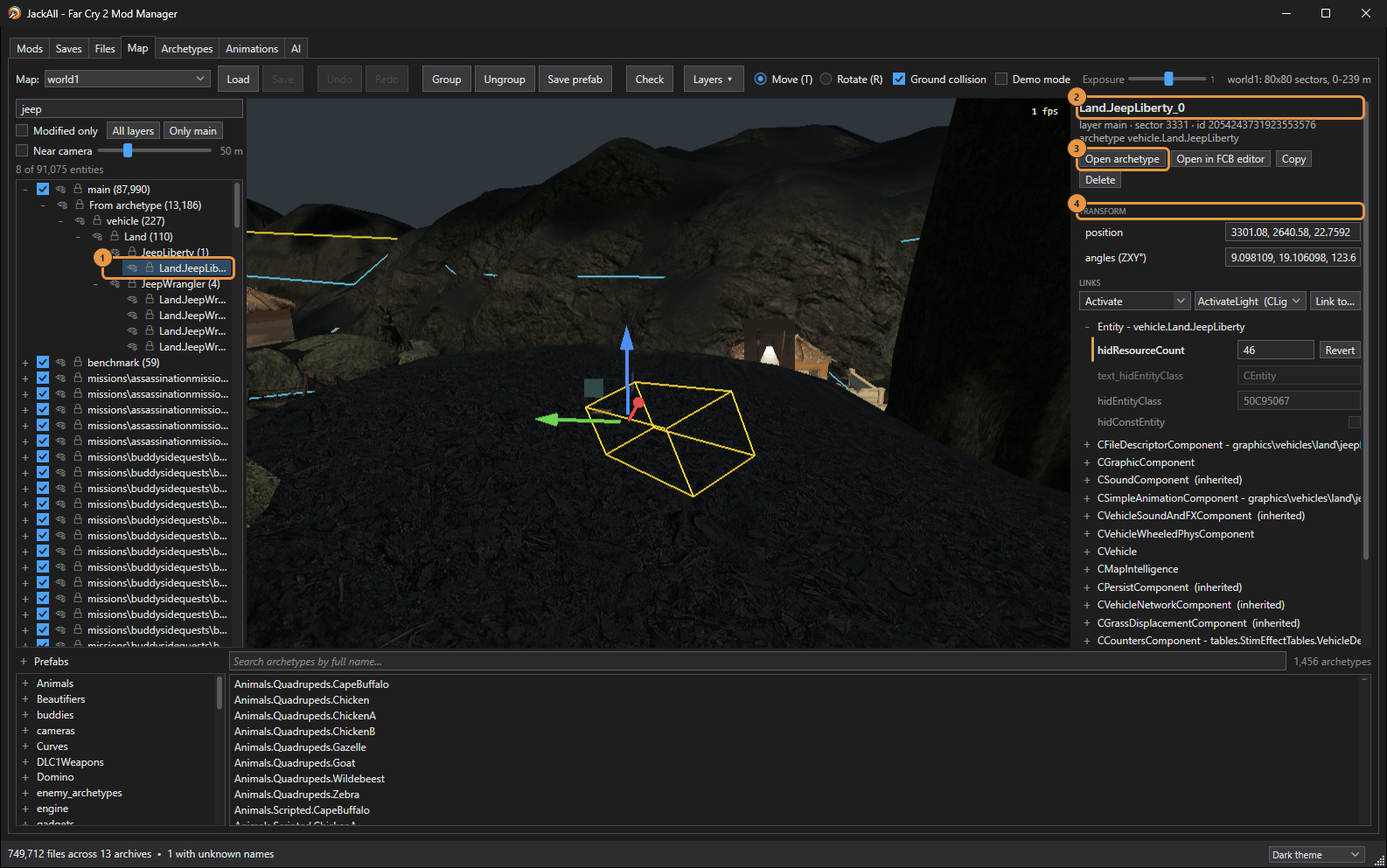
From the inspector:
- Open archetype (3) jumps to the Archetypes tab, on the definition this object is an instance of.
- Open in FCB editor opens the object itself in the value editor.
- TRANSFORM (4) is its position and rotation, and under it are its LINKS and its components.
Objects with a model are drawn as that model; everything else gets a symbol: lights in their colour, trigger zones as yellow wireframes, AI spots, sound and particle emitters.
In the hierarchy, the eye next to a row hides it in the view and the lock stops it being selected, for this session only. Only main shows just the main layer, All layers every mission layer again, Modified only what you or a mod changed, and Near camera only what's within the distance you set.